1. Overview
APRS PropView is a local web application for amateur radio APRS operations. It receives packets from RF TNCs and APRS-IS, plots stations on a live Leaflet map, draws propagation paths, scores VHF conditions, supports bidirectional messaging, and can transmit station beacons, weather packets, status reports, bulletins, and APRS objects.
The dashboard is meant for both fixed station monitoring and field/mobile operation. RF-only, APRS-IS-only, and combined RF plus APRS-IS deployments are supported.
On the first visit from a browser, an illustrated six-step Quick Start explains the safest setup order and the meaning of the main displays. Skip or close it after reviewing; it remains available from About/Help and from the Help & User Guide.
Core Purpose
Observe who your station hears, how far signals are traveling, and whether a VHF band opening is developing.
Gateway Role
Act as an RF digipeater and APRS-IS IGate when the station is configured with proper callsign, passcode, and RF path settings.
Situational Awareness
Combine live APRS stations, weather conditions, radar, NWS alerts, messaging, and analytics in a single browser view.
Common Use Cases
- Monitor local and regional VHF propagation from a home station.
- Run an APRS digipeater or IGate with visual feedback.
- Track direct RF stations separately from digipeated and APRS-IS stations.
- Operate from a vehicle, portable site, or Raspberry Pi using the mobile companion view.
- Send APRS messages, scheduled bulletins, station status, weather, and map-created APRS objects.
- Publish propagation, status, alert, and watched-station metrics into Home Assistant, Node-RED, or other MQTT consumers.
2. Quick Start
Run From Source
pip install -r requirements.txt
python main.py
On first launch, PropView creates or loads config.toml, starts the FastAPI server, and opens the web interface at http://localhost:14501.
Minimum First Setup
- Open the dashboard and select the Settings tab.
- Set your callsign, SSID, latitude, longitude, APRS symbol, and station comment.
- Configure at least one RF port if you have a KISS/TNC2 TNC, or leave RF disabled for APRS-IS-only use.
- Set APRS-IS server, port, passcode, and a range filter when using APRS-IS.
- Choose beacon path and beacon interval. Fixed station beacons should be 10 minutes or slower.
- Save configuration, then use preview and test buttons before transmitting.
On-air note: Use your assigned callsign and a valid APRS-IS passcode before transmitting or gating. Keep RF paths short and appropriate for your area.
Standalone Builds
Windows portable builds are produced with python build_exe.py. Windows setup installers are produced with python build_installer.py after installing Inno Setup 6; the setup wizard lets users choose the install folder and keeps user data during upgrades. macOS test app bundles are produced with python build_macos.py on macOS. See the repository README and platform docs for build-specific notes.
3. Interface Tour
Header
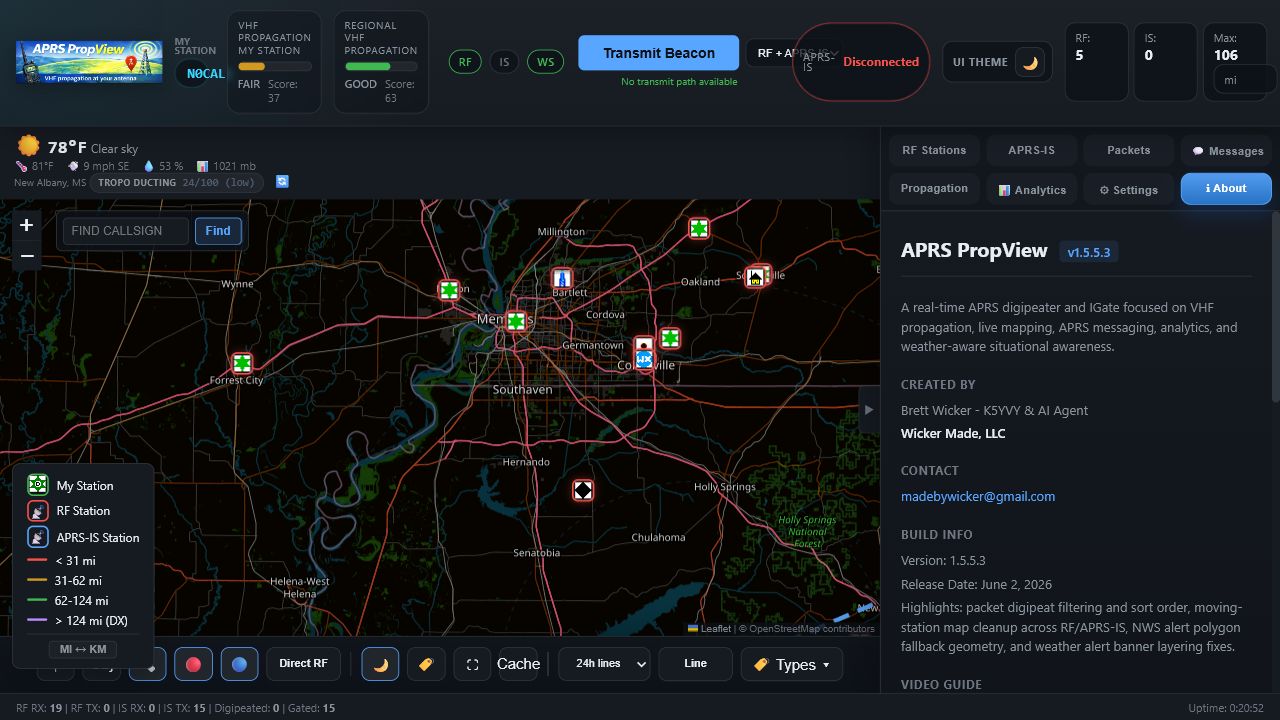
The header shows your station callsign, unified RF/APRS-IS/WebSocket status pills, direct and regional propagation gauges, station counts, max distance, UI theme toggle, notification bell, and a manual beacon control with route selection. Connection pills use green for connected, pulsing yellow-green for retrying/reconnecting, and red for disconnected.
On tablets and phones, secondary header actions move into the Status drawer. Its compact label keeps the current direct and regional propagation condition visible without crowding the map.
The header Data control opens a source-health panel for RF, APRS-IS, weather, weather alerts, GOES GLM, radar, and satellite imagery. Network feeds report freshness as live, delayed, stale, waiting, or offline. Browser tile overlays report configured status because the server cannot verify that every client tile rendered.
Main Map
The map occupies the primary work area. It displays your station, RF stations, APRS-IS stations, APRS objects, path lines, radar, alert polygons, and weather banners depending on enabled layers.
Side Tabs
| Tab | Purpose |
|---|---|
| RF Stations | Stations heard on RF, with filters for time, distance, type, path, and sort order. |
| APRS-IS | Stations received from the APRS-IS network. |
| Packets | Live and historical decoded packet feed with source and sort controls. |
| Messages | Send, receive, reply to, sort, and review APRS messages. |
| Propagation | Current propagation cards, histograms, charts, DXView link centered on your station, and solar data. |
| Analytics | Longest paths, heatmaps, reliability scores, and best time-of-day views. |
| Settings | Web configuration editor for station, RF, APRS-IS, weather, alerts, MQTT, GPS, and more. |
| About | Version, credits, update checks, support link, help modal, and this documentation. |
4. Map And Stations
The propagation map is the main visual surface. Station markers use APRS symbols, station source styling, popups, optional callsign labels, and propagation lines that can be filtered by age.
Map Controls
Map tools are grouped into View, Stations, Layers, and Appearance menus. Opening one menu closes the others so controls remain usable without covering unnecessary map space.
| Control | What It Does |
|---|---|
| Center | Returns the map to your configured or live GPS station position. |
| Obj | Creates an APRS object from a clicked map location and saves it into scheduled objects. |
| Lines | Shows or hides propagation path lines. |
| Scope | Centers a local operating view on your QTH with 25, 50, and 100 mile range rings. Watched-path cards can open the same scope at their saved target and add the configured target-area radius. |
| RF / APRS-IS | Shows or hides RF and internet-heard stations independently. |
| Direct RF | Displays only RF stations heard directly, excluding APRS-IS and digipeated RF paths. |
| Theme | Switches between dark and light map tile styling. |
| Labels | Toggles persistent callsign labels above station icons. |
| Auto-fit | Zooms the map to include visible stations until manually overridden. |
| Cache | Downloads currently visible map tiles so they remain available offline later. |
| Line | Configures line color mode, custom color, weight, opacity, and pattern. |
| Size | Scales APRS station symbols up or down and saves the choice in browser UI state. |
| Types | Filters visible stations by APRS symbol/type categories. |
Station Source Behavior
- RF stations are tracked separately from APRS-IS stations.
- Direct RF stations can be isolated from stations heard through digipeaters.
- Digipeater-routed lines can draw transmitter-to-digipeater-to-receiver paths instead of misleading straight lines.
- If a moving callsign appears later on APRS-IS at a newer different position, stale RF map markers can be removed to avoid duplicate locations.
- Station ghosting and expiry visually age or remove stale stations.
Offline Map Tiles
PropView uses Leaflet XYZ tiles. You can use the default online OpenStreetMap tiles or configure a custom tile URL with {z}, {x}, and {y} tokens. The map always requests base tiles through PropView's local tile proxy at /api/map-tiles/{z}/{x}/{y}, which lets the app save and reuse tiles in map_tile_cache/.
The map Cache control downloads the currently visible base-map tiles at the current zoom. Use it while internet is available, wait for the button to report completion, then repeat for each area and zoom level you expect to need offline. If the same tile is already present, PropView counts it as cached instead of downloading it again.
Cached tiles are preserved during Windows installer upgrades and Linux/Pi service updates. If a needed tile has not been cached and the upstream tile source is unavailable, that individual tile will be blank until the app can download it later.
Back to top5. RF, Digipeater, And IGate
RF Ports
Newer configurations use [[rf_ports]] entries. Ports can represent serial KISS, TCP KISS, or legacy TNC2 monitor style input depending on configuration. Each port can be named and controlled independently.
Digipeater
The digipeater supports WIDEn-N style behavior and duplicate suppression. Use aliases and dedupe windows that match local APRS practice. Avoid overbroad paths in dense areas.
IGate
The IGate can forward RF to APRS-IS, APRS-IS to RF, or both when enabled and properly verified. IS-to-RF gated packets are formatted to avoid loops and should not request further digipeating.
Important: RF-to-APRS-IS gating requires a valid APRS-IS passcode. Read-only passcode mode can receive but cannot inject packets into APRS-IS.
TCP TNC Reliability
TCP RF ports report connection state to the dashboard. If a remote TCP TNC disconnects, the RF status pill changes state, a short notification is added to the header drawer, and PropView attempts to reconnect automatically.
Beaconing
Station beacon preview shows exact packet text before transmit. Manual beacon controls can transmit over RF, APRS-IS, or both depending on available connections and route choice.
Back to top6. APRS-IS
APRS-IS settings control internet receive/transmit connectivity. The default public server is typically rotate.aprs2.net on port 14580.
Filters
PropView can generate range filters for fixed or moving use. Fixed filters look like r/35/-79/80 or r/35.5/-79.8/80. Moving filters look like m/80. Additional javAPRS filter tokens may be appended.
Read-only Operation
Private or local APRS-IS-style feeds that omit banners or login responses can still populate receive traffic. Without login verification, PropView keeps that connection read-only.
Recommended Steps
- Set server and port.
- Enter your passcode if transmitting or gating.
- Choose fixed or moving range filter mode.
- Preview the generated filter and add extra tokens only when needed.
- Save and watch the APRS-IS status chip.
7. APRS Messaging
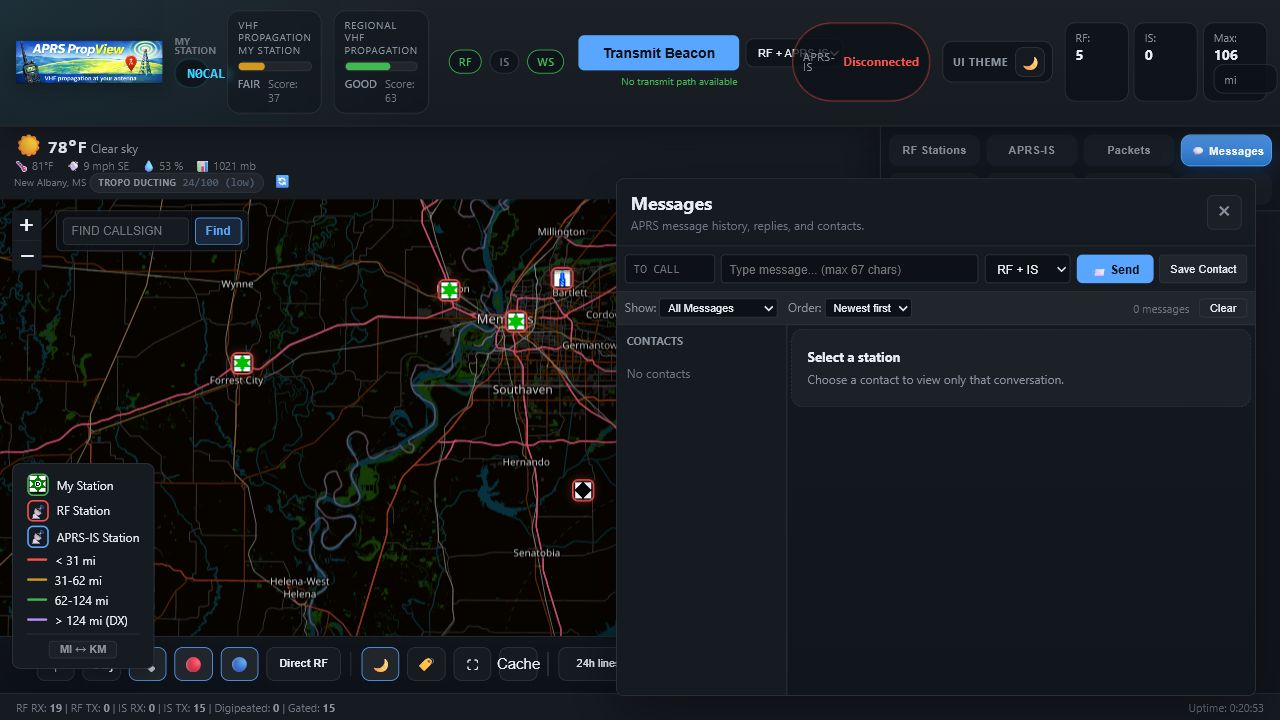
The Messages tab supports APRS message send, receive, auto-ACK behavior, retries, history, contact-style reply flow, and message notifications.
The Messaging settings can optionally accept sibling SSID addressees for the same base callsign. For example, a station configured as K5YVY-1 can show messages sent to K5YVY-7 or K5YVY-9. Only exact station-ID messages are auto-ACKed by the running app.
How To Send A Message
- Open the Messages tab.
- Enter a destination callsign, tactical address, or supported bot addressee.
- Type a message up to 67 characters.
- Click Send. PropView routes over RF and APRS-IS according to current availability.
Message History
History is stored in the local SQLite database and can be filtered by all, sent, or received. Message sort order can be newest-first or oldest-first on desktop and mobile views.
Notifications
Incoming APRS messages can trigger Discord, email, or SMS notifications independent from band-opening alert channels.
Back to top8. Propagation And Analytics
PropView scores propagation with two dashboard gauges: direct-heard RF for your station and regional RF including digipeated paths. Thresholds are configurable in the propagation settings.
Click either gauge to inspect the supporting observation window and separate direct/regional evidence-confidence scores. Confidence describes data freshness, sample breadth, and session maturity; it is not a probability or forecast. The Propagation tab tracks a conservative event lifecycle from developing through confirmed/peak and fading conditions using sustained one-minute RF samples.
Propagation Views
- RF station counts over 1 hour, 6 hours, and 24 hours.
- Maximum and average distance views.
- Distance distribution histogram.
- 24-hour propagation history chart.
- Solar data widget from hamqsl.com.
- External VHF DXView map link centered on the configured station latitude/longitude.
Analytics
The Analytics tab adds historical views including longest path leaderboard, propagation heatmap, station reliability grades, best time-of-day analysis, selectable-window Sporadic-E diagnostics, and a weather dashboard with gauges, records, charts, forecast, and map context.
The longest-path list defaults to direct RF evidence and is independent of the map range. To keep a mistyped or stale station position from dominating the list, an isolated path of 800 km (about 500 mi) or more is held out until another reception places that callsign in the same area. Repeated long paths remain visible. Enable Show unconfirmed positions to inspect held-out entries and their reason.
Alert Tuning
The alert tuning helper can analyze recent RF path history and recommend more selective alert thresholds based on your local station baseline.
Back to top9. Weather And Alerts
Weather features provide map context and optional APRS weather transmissions. Open-Meteo powers current conditions. NWS alert support provides US severe weather banners, alert polygons, and adaptive polling.
Weather Display
- Current conditions banner with temperature, wind, humidity, pressure, feels-like, and location.
- Metric or imperial units for weather and station displays.
- Optional animated radar overlay with opacity control.
- NWS alert banners and map polygons with radius and category filters. Each alert banner includes an X to clear it from the current view.
- County/zone geometry fallback for alerts without native polygons.
WXnow.txt
WXnow transmit can beacon APRS weather packets from a local WXnow.txt file. Configure weather SSID, route, path, interval, stale cutoff, and whether position is included. Preview before one-shot or scheduled transmit.
Weather Alert Beacons
Status/DX settings can optionally include severe weather alert text in APRS status beacons when selected active alerts are present.
Back to top10. GPS And Mobile
GPS Sources
GPS ingestion can use browser/mobile geolocation, your own APRS position packets, NMEA serial, NMEA TCP, NMEA UDP, gpsd, or any supported source. GPS can move only the map marker or update saved station coordinates.
Position Lock
The station coordinate lock prevents active GPS from overwriting saved latitude and longitude. Leave it locked when mobile GPS should move the marker without changing your base station configuration.
Smart Beaconing
Smart beaconing chooses between slow/parked and faster moving intervals based on GPS speed. This is useful for mobile or portable operation. APRS-IS-safe minimum intervals are enforced.
Mobile Companion
Open /mobile from a phone browser on the LAN, VPN, or Tailscale. The mobile interface includes Messages, Map, Stations, Propagation, and About tabs. The Share GPS control can feed the phone location into PropView.
Using Tailscale For Remote Mobile Access
Tailscale is a private WireGuard-based VPN that lets your phone reach APRS PropView when you are away from the home LAN without exposing the dashboard to the public internet. Install Tailscale on the computer, Raspberry Pi, or VM running APRS PropView and on the phone or tablet that will use the mobile companion.
- Sign in to the same Tailscale account on the APRS PropView host and the mobile device.
- In APRS PropView, open Settings → Web Interface and set Host to
0.0.0.0so the web server listens beyond localhost. - Keep the port at
14501unless you intentionally changed it, save settings, and restart APRS PropView because host/port changes are startup settings. - Find the host machine's Tailscale IPv4 address or MagicDNS name in the Tailscale app.
- From the phone, open
http://TAILSCALE-IP:14501/mobileorhttp://magicdns-name:14501/mobile. - If you want the phone to feed GPS, set GPS source to This browser/device or Any source, tap Share GPS in the mobile view, and allow browser location permission.
Security note: Tailscale or a similar private VPN is preferred over public port forwarding. Do not expose APRS PropView directly to the internet unless you have added your own network-layer access controls.
The mobile map uses the same APRS station symbols as the desktop view and can draw compact propagation lines from your station to RF and APRS-IS stations. RF paths use distance-based colors, while APRS-IS paths are shown as lighter dashed lines. Use the mobile Lines control to hide or restore path lines, Light/Dark to switch the default mobile base-map theme, and Fit to frame your station plus visible stations. The Motion control pauses or resumes live packet motion. Its Basic or Enhanced style follows the desktop Map & Display setting, and device reduced-motion preferences turn it off.
Tap a station marker to open an information bubble with callsign, source, symbol type, distance, last-heard time, packet count, path/comment details, and a Send Message button that opens the selected station conversation.
Mobile messages are grouped by conversation/station. The conversation strip shows recent contacts and previews, while the selected thread below shows only that station's message history with sent/received bubbles, route labels, and ACK/reject state for outgoing messages.
Back to top11. Scheduled Packets
Bulletins
Scheduled bulletins transmit APRS BLN packets on an interval. Configure route, interval, and message lines. Keep content short, useful, and appropriate for local APRS audiences.
APRS Objects
Scheduled objects transmit named APRS object packets with position, symbol, scope, route, path, comment, and optional repeater-style metadata. Create new objects with the Obj map control: click the object location, then complete the guided editor. While object placement is active, weather watch and warning polygons temporarily stop intercepting map clicks, so locations inside an alert area remain selectable. Normal weather-alert popups resume after placement or cancellation. The saved-object text field in Settings is intended for reviewing, modifying, or removing existing records, not for manually creating them.
Status, MHeard, And Dynamic Messages
Status/DX reports can summarize best direct DX, bearings, station counts, propagation level, direct RF MHeard summaries, dynamic preset lines, or weather alert status depending on enabled options.
Back to top12. MQTT Integration
MQTT publishes propagation state, summary values, availability, retained Home Assistant status snapshots, watched callsign state, Home Assistant Discovery sensors/binary sensors, automation events, and alerts to a broker such as Mosquitto, Home Assistant, Node-RED, or EMQX.
Basic Setup
- Enable MQTT in Settings.
- Enter broker host, port, topic prefix, and credentials if needed.
- Enter optional watched callsigns if Home Assistant should track whether specific stations were heard recently.
- Enable Home Assistant Discovery if Home Assistant should create entities automatically.
- Save. PropView reconnects MQTT live and republishes discovery config topics.
Default Topics
| Topic | Purpose |
|---|---|
aprs/propview/propagation | Retained JSON with current propagation metrics. |
aprs/propview/score | Retained regional propagation score. |
aprs/propview/level | Retained regional propagation level text. |
aprs/propview/alert | JSON alert event payload. |
aprs/propview/event | Automation-friendly non-retained events. |
aprs/propview/event/<type> | Typed event topics for routing specific alerts, messages, and milestones. |
aprs/propview/ha/status | Retained Home Assistant status JSON for connectivity, counts, packet age, warnings, messages, and band-opening state. |
aprs/propview/watched/<callsign> | Retained watched-station presence, last-heard, distance, path, and comment details. |
aprs/propview/status | Availability state for Home Assistant. |
For broker examples and Home Assistant/Node-RED details, open the MQTT Setup Guide.
Back to top13. Options Reference
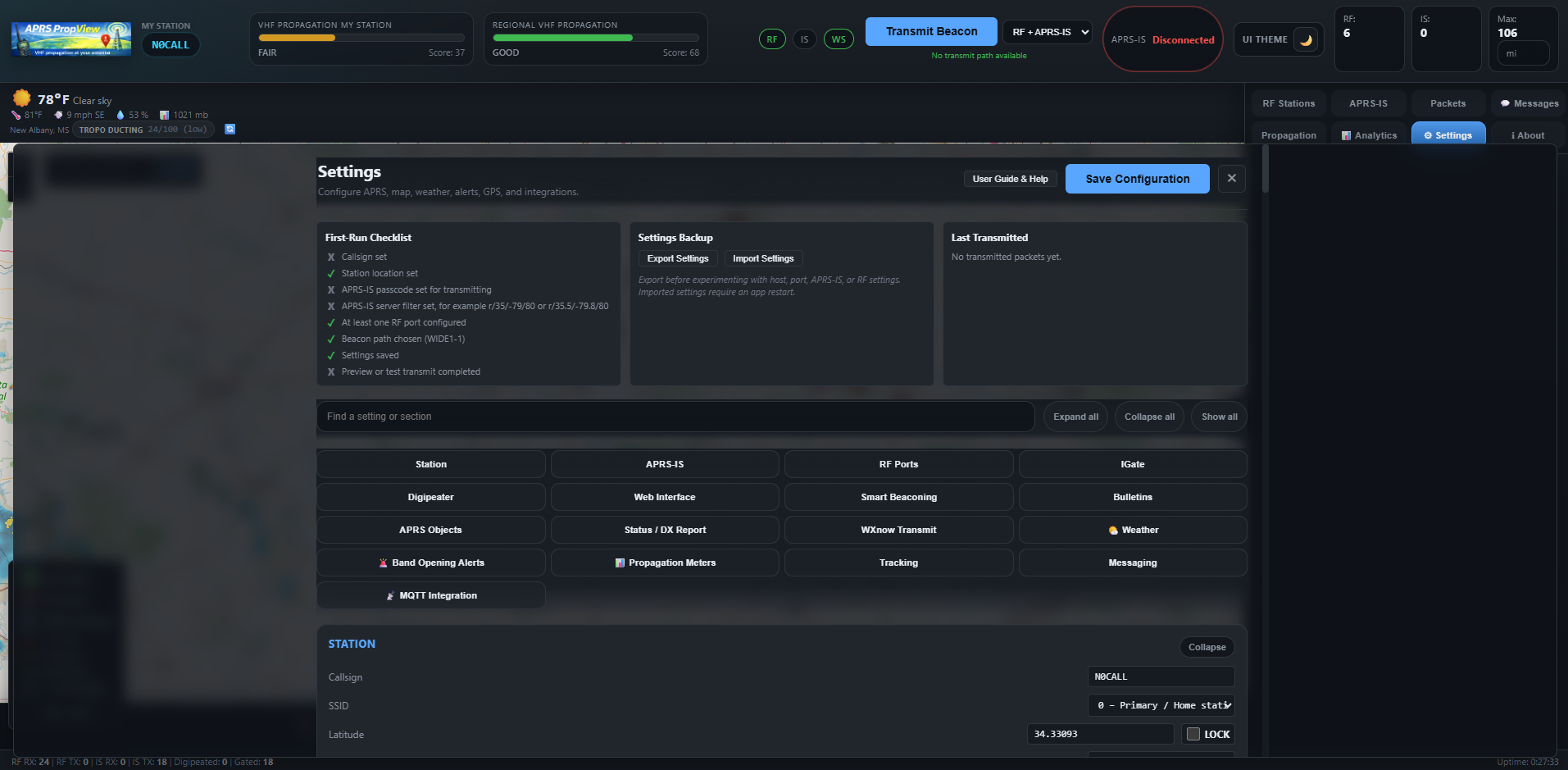
Settings are organized into workflow categories with search, direct category links, collapsible sections, per-section reset, and a sticky Save Configuration action. Modified sections pulse yellow and remain listed in navigation until saved. Basic view shows the controls needed for normal receiving, mapping, propagation, watched paths, and alerts; Show Advanced reveals transmit features and optional integrations.
The Overview category includes an actionable setup checklist, a configuration-readiness report, and operating-mode presets. The selector shows Custom configuration when the current form does not exactly match a built-in preset. Presets only stage changes in the form so you can review them before Save Configuration. A contextual Complete This Setup guide summarizes the active topology and links to the relevant RF/TNC, APRS-IS, IGate, digipeater, GPS-source, and station-beacon settings. It also distinguishes saved from staged settings, recommends exporting a backup, can reload the saved configuration, and offers optional transmit-setting protection. Saves that add transmit capability require a final review listing the exact features being enabled. Clicking the RF, APRS-IS, or browser live-link status in the header opens connection diagnostics and links to the related settings.
After every save, PropView states whether changes were applied immediately, require only a browser refresh, or require a full application restart. Restart-class settings are reported only when their values actually changed.
| Section | Purpose |
|---|---|
[station] | Callsign, SSID, position, symbol, comment, beacon interval, and beacon path. |
[digipeater] | Enable state, aliases, WIDEn-N behavior, and dedupe timing. |
[igate] | RF-to-APRS-IS and APRS-IS-to-RF gateway controls. |
[aprs_is] | Server, port, passcode, filter mode, range, and extra filters. |
[[rf_ports]] | Multi-port RF serial/TCP KISS and compatible monitor-style inputs. |
[web] | Bind host, port, browser launch selection, UI font, map tile source, station ghosting, station expiry, and mobile PIN. |
[tracking] | Station age windows, cleanup intervals, and callsign/SSID blocklist. A base callsign blocks every SSID. |
[[watched_paths]] | Target callsign/grid/coordinates, target-area radius, band/mode/frequency, confidence, antenna details, plus optional per-location weather/lightning alert radius, cooldown, and destinations. |
[callbook] | Callook, HamDB, QRZ XML, and HamQTH lookup selection and optional credentials. |
[messaging] | APRS message history retention and optional sibling-SSID receive behavior. |
[database] | SQLite database path. |
[propagation] | Direct and regional scoring thresholds plus optional station-specific PSK Reporter VHF/UHF context. |
[status] | Status/DX, dynamic, MHeard, and weather-alert beacon options. |
[smart_beaconing] | GPS-speed-aware beacon interval behavior. |
[bulletins] | Scheduled APRS BLN packet route, interval, and messages. |
[aprs_objects] | Scheduled APRS object route, interval, symbols, coordinates, metadata, and comments. |
[alerts] | Band-opening thresholds, cooldowns, quiet hours, audio, Discord, email, and SMS settings. |
[weather] | Weather source settings, alerts, radar and satellite overlays, GOES GLM lightning, NOAA space-weather context, alert categories, and adaptive polling. |
[wxnow] | WXnow weather packet transmit settings. |
[gps] | Browser, APRS self-packet, NMEA, and gpsd ingestion settings. |
[mqtt] | Broker, topics, Home Assistant Discovery, device identity, watched callsigns, status snapshots, and publish behavior. |
Backup And Restore
Use settings export before experimenting with RF, APRS-IS, host, port, or tile settings. Imported settings require an application restart before the full configuration is loaded.
Watched VHF Paths
Enter a target callsign and use Lookup to populate a license/callbook location, then choose band, mode, frequency, confidence, and target-area radius. You may instead enter a short target label and supply coordinates or a Maidenhead grid manually. Configure weather and nearby-GOES-lightning notifications for saved targets under Settings → Alerts & Weather → Watched Location Alerts; each target has its own radius, cooldown, and destinations. The map's Grid control draws zoom-dependent Maidenhead labels; while it says Pick Grid, clicking a square fills its locator and center coordinates, highlights the required Target station / label field, and moves keyboard focus there. Antenna height, transmit power, and antenna gain provide radio-horizon and capability context but do not create an opportunity without matching direct-heard RF propagation evidence near the target area. Stations heard through another digipeater are excluded.
Environmental Context
The Weather Analytics view includes a local APRS weather mesh that ranks stations by age and measurement completeness and shows short-term trends. The Propagation view also presents current NOAA SWPC Kp and G/R/S scales as context. Space-weather values can help explain unusual northern-path observations, but PropView does not treat them as confirmation or prediction of a VHF opening. Operators may opt into station-specific PSK Reporter observations above 50 MHz; these are fetched no more than once every five minutes and remain independent context rather than APRS RF evidence.
Visualizations
The Map & Display category includes independent controls for the propagation aura, new-path reveal, map color harmony, condition backdrops, expressive home marker, watched-path flow, quiet direct-heard activity moments, and live packet animation. Packet animation can be Off, Basic (station bursts and flowing dashes), or Enhanced (moving packet head, contrail, and hop pulses). Effects apply live after saving, and operating-system reduced-motion preferences are respected.
Display Density offers Comfortable, Compact, and Wallboard sizing. Dashboard Visibility independently shows or hides weather, lightning, weather alerts, source health, watched paths, and propagation-context cards. These choices are stored in the browser and do not alter radio or server configuration.
Settings also provides task shortcuts for radio setup, APRS-IS, weather and lightning, alerts, club display, and mobile operation. The persistent action bar reports the active category and how many sections have unsaved changes.
Club Display opens a read-only /kiosk layout for club rooms, events, and unattended monitors. Live Map uses the full map area; all data scenes switch to full-width, map-free wallboard dashboards. In addition to Propagation, Weather, and RF Activity, users can add APRS-IS activity, packets, longest paths, heatmap, reliability, best times, alerts, anomaly, bearing, history, Sporadic-E, and first-heard panels. Data-heavy dashboards automatically scroll during their scene so all tables and cards can be seen, while charts retain their original proportions on wide displays. Choose the scenes and a 10–300 second rotation interval. The display includes pause, previous, next, fullscreen, and exit controls; keyboard Space and arrow keys provide the same rotation controls.
Station Blocklist
Enter W1AW-7 to block one station identifier or W1AW to block all SSIDs for that callsign. Blocked packets are rejected before station, packet, message, and propagation history updates.
14. Operations And Maintenance
Routine Operation
- Watch RF, APRS-IS, and WebSocket status pills after startup.
- Check the header notification bell for RF TCP errors/reconnects and received APRS messages.
- Use preview buttons before transmitting beacons, status, WXnow, bulletins, or objects.
- Keep beacon intervals conservative. Ten minutes or slower is the fixed-station norm for APRS-IS-safe operation.
- Use Direct RF view when tuning propagation alerts or evaluating local reception.
- Export settings before changing radio, port, APRS-IS, or gateway behavior.
Updates
The About tab checks GitHub releases for newer builds unless update checks are disabled. The app can also show an update banner in the dashboard.
On Windows installer-based releases, the update checker looks for a GitHub release asset named like APRSPropViewSetup-1.9.0.exe. When an installer asset is available, the About/Help tab shows Install Update. Clicking it downloads the setup executable, asks APRS PropView to shut down cleanly, and launches setup after the server exits so newer application files can replace the existing install while keeping user settings and data intact. On Linux, Raspberry Pi, and macOS, release notices remain visible but the Windows-only installer action is hidden.
Browser Launch Control
Settings → Web Interface includes an Opening Browser selector. Leave it blank/system default for normal behavior, choose a discovered browser when you want a specific browser, or choose Do not open automatically for headless Pi/VM service deployments where opening a browser is not desired.
Data Files
| File Or Folder | Use |
|---|---|
config.toml | Main saved configuration. |
propview.db | SQLite packet, message, station, and analytics history. |
map_tile_cache/ | Downloaded map tiles for offline use. |
user_audio/ | User-provided alert audio files. |
Installer upgrades do not delete config.toml, propview.db, map_tile_cache/, or user_audio/. Uninstall also leaves those user data files in place unless they are removed manually.
Docker and TrueNAS Persistence
Container installs store writable state in the configured data directory, normally /data. In TrueNAS SCALE, Portainer, Unraid, and Compose installs, mount persistent storage to /data so config.toml, propview.db, cached map tiles, and uploaded alert audio survive container recreation. Open /api/health?full=true to confirm the active config path points to /data/config.toml.
Docker environment variables are startup overrides. If values such as PROPVIEW_HOST, PROPVIEW_PORT, PROPVIEW_CALLSIGN, or PROPVIEW_KISS_TCP_HOST are set in the app platform, those values replace the saved configuration on every start. Change the value in the platform environment, or remove the environment variable and manage that setting from PropView.
15. Security And Policy
Application Protections
- Input validation for callsigns, APRS-IS hosts, ports, filter tokens, paths, and packet fields.
- TOML injection prevention for imported and saved settings.
- XSS-safe escaping for user-supplied display data.
- Masked APRS-IS passcodes in API responses.
- Configurable CORS origins and WebSocket connection limits.
- Sanitized error messages in user-facing responses.
APRS-IS Compliance
- Minimum 10-minute beacon interval enforcement for APRS-IS policy.
- Read-only mode for unverified or passcode
-1connections. - RF-to-IS gating respects
NOGATEandRFONLY. - IS-to-RF gated packets use third-party format and avoid requesting further digipeating.
- Country-neutral callsign handling checks APRS-safe characters while APRS-IS verifies account authority.
16. Architecture
APRS PropView is a Python/FastAPI backend with a browser dashboard. The backend handles radio/network IO, packet parsing, database storage, station tracking, propagation analytics, alerts, weather, MQTT, REST APIs, and WebSocket updates. The frontend renders map, tabs, controls, and live data.
KISS/TNC RF        APRS-IS
    |                 |
    v                 v
 PacketHandler and Gateway Logic
    |
    +-- StationTracker
    +-- Database
    +-- Analytics
    +-- Alerts and Weather
    +-- MQTT Publisher
    |
 REST API + WebSocket
    |
 Desktop Dashboard and Mobile View
Key Project Areas
| Path | Role |
|---|---|
main.py | Application entry point. |
server/app.py | FastAPI routes, validation, settings API, static pages, and WebSocket setup. |
server/packet_handler.py | Central packet routing between RF, APRS-IS, tracking, database, and UI. |
server/kiss.py | KISS and compatible radio transport handling. |
server/aprs_is.py | APRS-IS TCP client. |
server/station_tracker.py | Station state, direct RF handling, propagation scoring inputs, and cleanup. |
server/weather.py | Open-Meteo and NWS weather functions. |
static/index.html | Desktop single-page dashboard. |
static/mobile.html | Touch-optimized mobile companion. |
static/js/ | Frontend map, station, message, analytics, weather, and WebSocket logic. |
17. Sources And Credits
Project Sources
- APRS PropView GitHub repository
- Release downloads and changelog
- APRS PropView MQTT Setup Guide
- Mobile companion page
External Services And Libraries
- Leaflet for interactive web mapping.
- OpenStreetMap tile data and attribution when using default map tiles.
- Open-Meteo for current conditions.
- National Weather Service API for US alerts.
- HamQSL solar data for propagation summary imagery.
- APRS-IS for APRS internet backbone connectivity.
Credits
APRS PropView was created by Brett Wicker - K5YVY with assistance from an AI agent. The README thanks community contributors and issue reporters for suggestions and bug finds.
Documentation content here is derived from the local project README, configuration example, in-app help text, and current static/server source files.
Back to top18. Troubleshooting
No Stations Appear
- Check RF, APRS-IS, and WebSocket status indicators.
- Confirm station coordinates and APRS-IS filter radius are valid.
- For RF, verify the TNC port type, serial/TCP address, baud rate, and radio audio/PTT path.
- For APRS-IS, confirm server, port, internet access, and filter string.
Cannot Transmit Or Gate
- Replace placeholder callsigns such as
N0CALL. - Use a valid APRS-IS passcode for transmitting to APRS-IS.
- Confirm RF port availability before RF transmit.
- Check that route mode is not set to a currently unavailable transport.
Map Tiles Do Not Load
- Return to the default OSM source or verify custom tile URLs include
{z},{x}, and{y}. - Check local tile server availability when using offline maps.
- Cache tiles while online before relying on them offline.
Weather Or Alerts Are Missing
- Confirm weather is enabled and the location is a valid US zip code or ICAO code.
- NWS alert polygons and warnings are US-focused and depend on active NWS data.
- Radar and alerts can be separately disabled by map overlay settings.
MQTT Messages Are Missing
- Confirm the broker host, port, credentials, and topic prefix.
- Subscribe to
aprs/propview/#with MQTT Explorer ormosquitto_sub. - For Home Assistant Discovery, keep discovery prefix and device ID stable.